

Before you start
Start with a finished certificate PDF, or a DOCX ready for conversion. Check the recipient’s name, course, award date and issuing organisation in your source file. Cigned places artwork on an existing document; prepare or correct certificate wording in your document editor first.
To try the workflow, verify your email for a 14-day personal trial with 10 completed documents total. Trial previews and outputs carry a trial footer. Compare trial access and paid plans.
Follow these steps
1. Prepare the certificate and artwork
For a school or training centre in Africa, leave clear space for the authorised school stamp and any personal signature. Create or upload the artwork in Stamps and save a version. If using shared team artwork, your account needs permission to use that stamp.
2. Upload and inspect the pages
Open Documents and upload your PDF or DOCX. Check names, dates, logos and spacing on the prepared pages. Word conversion can change fonts or page breaks; correct the source and upload again if needed.
3. Place the school stamp
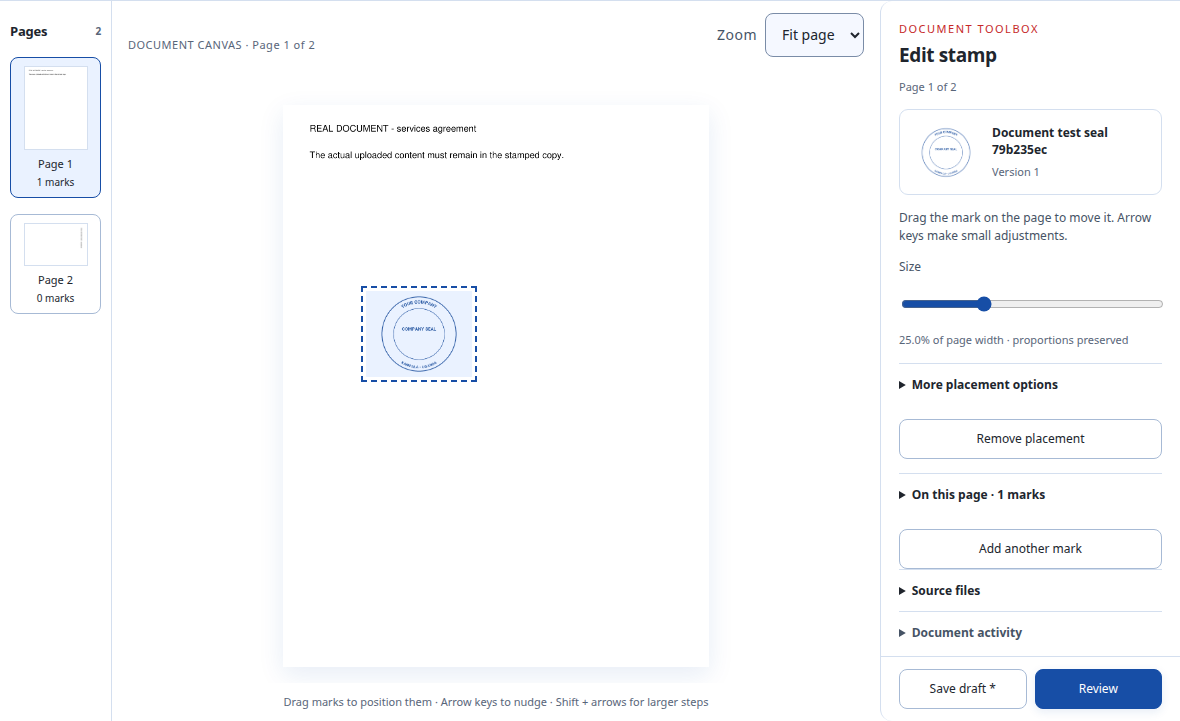
Choose Stamp and select the saved version. On a phone, tap Add mark first. Choose Place stamp, then tap the page or choose Place in centre. Drag the mark into the reserved area and adjust Size without covering the recipient’s name or award details.
4. Check each certificate separately
If a file contains several certificates, review the names and stamp positions on every page. More placement options can repeat a stamp on All pages using Apply to selected pages; use this only when the layouts match. This repeats a mark, not certificate names or content.
5. Review and download
Choose Review document (Review in the control panel). Check every page and confirm your page checks. If you also placed a personal signature, authorise its use. Select Create stamped PDF, then Download stamped PDF. Open the downloaded file and inspect it before sending.
Before you send the finished file
Confirm the name and award details, the correct issuing stamp, clear placement and any required signature. A visible stamp does not verify the certificate’s authenticity or guarantee a recipient will accept it.
Cigned keeps the original document. Creating a new completed copy does not change an earlier output.
If something needs adjusting
The name or date is wrong
Correct the source document and upload the corrected file before applying marks.
The stamp covers important text
Return to placement, select the stamp, move it and reduce Size. Review again before creating another output.
Certificates have different layouts
Place and check marks page by page instead of repeating the same position throughout.